Turn card visits into qualified leads.
Five settings stand between an anonymous scan and a CRM-ready opportunity. This is how to configure them.
01Turn on the form
By default, your card is read-only — visitors see your contact info, that's it. To capture leads, toggle Show form on. A "Get In Touch" button appears on your card; tapping it opens a modal with the lead form.
You can rename the button to match your goal — Book a meeting, Get my pricing PDF, Join the waitlist. The button label sets the user's expectation; match what happens after submission.
02Tag every lead at the source
Lead tags travel with each captured lead into your CRM, where they become filterable, sortable, and reportable. Use them as your top-level segmentation:
- Source tags —
conference-q2,print-card,linkedin-bio - Intent tags —
demo-requested,info-only,partner-inquiry - Owner tags —
jane-territory,enterprise-team
Tags applied at capture time are far more reliable than tags applied later, when context is lost.
03Pick the right mailing list
Every lead captured gets added to a mailing list automatically. Pick a focused list rather than your master "Newsletter" — the more specific the list, the more permission you have to send specific follow-up.
If the list doesn't exist yet, type its name into the field; Branded creates it on the fly when the first lead lands.
04Write the CTA and thank-you that convert
Two short copy fields — under-tuned by most users, high-leverage when you do.
- Lead button label: verb + outcome. "Get my pricing" beats "Submit". "See a demo" beats "Contact us".
- Thank-you message: appears after submission. Set expectations: "Thanks. Jane will email you within one business day with your industry benchmarks." A specific promise outperforms "Thanks for reaching out!"
05Tag leads to a trade show or event
The Active Event picker (in the Lead Collection Form Settings group, just below Tags) lets you stamp every lead captured by your card with a specific event. The use case is in-person work — you're at a booth, an open house, a golf outing, a conference. Set it to the event you're staffing today, and every scan that lands while it's set carries that event with it forever.
- The picker only shows events that haven't ended yet, so you can't accidentally pick last year's show.
- Each captured lead's CRM form will show a small Captured at:
badge under the title — visible to you and to anyone reviewing the lead later. - Standard CRM filters — saved searches like "leads from SaaStr 2026" — work out of the box once
event_idis set.
06Where leads end up in your CRM
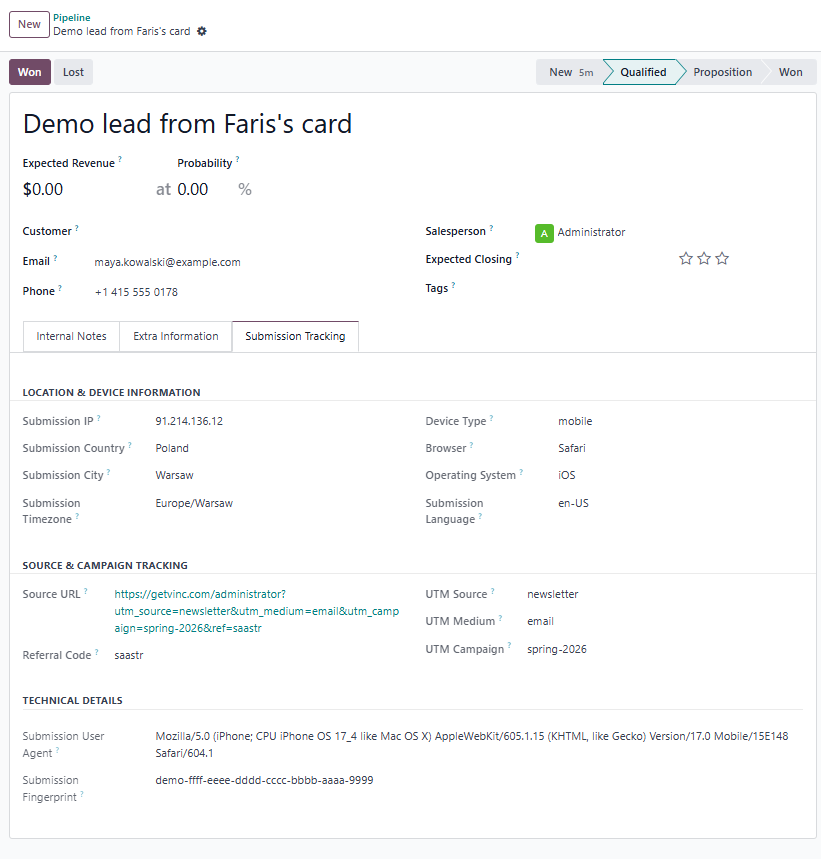
Each form submission creates a crm.lead opportunity in the default pipeline stage. The lead has:
- Contact name, email, phone — captured directly from the form
- The originating
partner.vcardlinked back, so you can see "this lead came from Jane's card" - Any tags you configured at capture time
- Free-text notes if the form's notes field is enabled
Leads land in your CRM's default pipeline stage (the first stage in your pipeline — typically "New") and get auto-assigned to the card's owner: Branded looks up the user whose login matches the card's email, and falls back to the user who created the card record. For team-level routing rules beyond that, see the admin guide: CRM & Lead Routing.